Capture it.
Make it clear.
Screenshots and screen recordings, from capture to final edit. A local media library, focused editors and floating desktop tools for Mac and Windows. No account. No EasyShot cloud.
Free during beta · macOS 13+ · Windows 10 1803+
Three windows, not three modes.
The image editor, the media library and the video editor are separate windows in one app.
One long page. One stitched image.
Frame the part that scrolls, and EasyShot walks the page for you while the floating panel fills band by band.
- Automatic, at your own pace, or one frame at a time.
- Repeated headers and fixed sidebars are detected, and matched rows are added once.
- The finished strip opens straight in the editor.
Read the text. Take it with you.
Offline OCR lifts the words out of anything on your screen — a document, a photo, a slide — into a window you can copy as plain text.
- A QR code comes back as the link behind it.
- The same box redacts: opaque, pixelated or blurred.
- So a number you did not mean to share is gone before the shot leaves your desk.
Several captures. One canvas.
Add images puts more than one capture on the canvas, out of local history or from a file — stacked, or placed wherever you want.
- Every image stays its own layer.
- Its arrows, counters and notes move and scale with it.
- Up to twenty, exported as one PNG or JPEG.
Mark it, mask it, frame it, send it.
Six things a screenshot actually gets used for, each one filmed inside the development build. The pointer, the panels and the exports are the app's own; nothing here is a mock-up.
Get EasyShotMarkup
0:11Redact
0:06Add background
0:07Crop
0:08Scrolling capture
0:20Quick Access
0:05
Pad it on a gradient. Tilt it like a product.
The Background panel frames the capture on the app's own gradients, wallpapers or blurred backdrops, at the padding and ratio you choose.
- Mockup presets — Left Tilt, Top View, Isometric Right, Hero Shot — stand it up in 3D.
- A depth dial sets how far the perspective leans.
- Both live in the project, still there to change tomorrow.
Record on your desktop. Finish on your timeline.
Choose a screen, a region or a window from the floating toolbar, and add camera, microphone or system audio when the story needs it.
- Set the background, then add the zoom ranges.
- Change the speed of one interval, on its own lane.
- Export as MP4 or GIF.
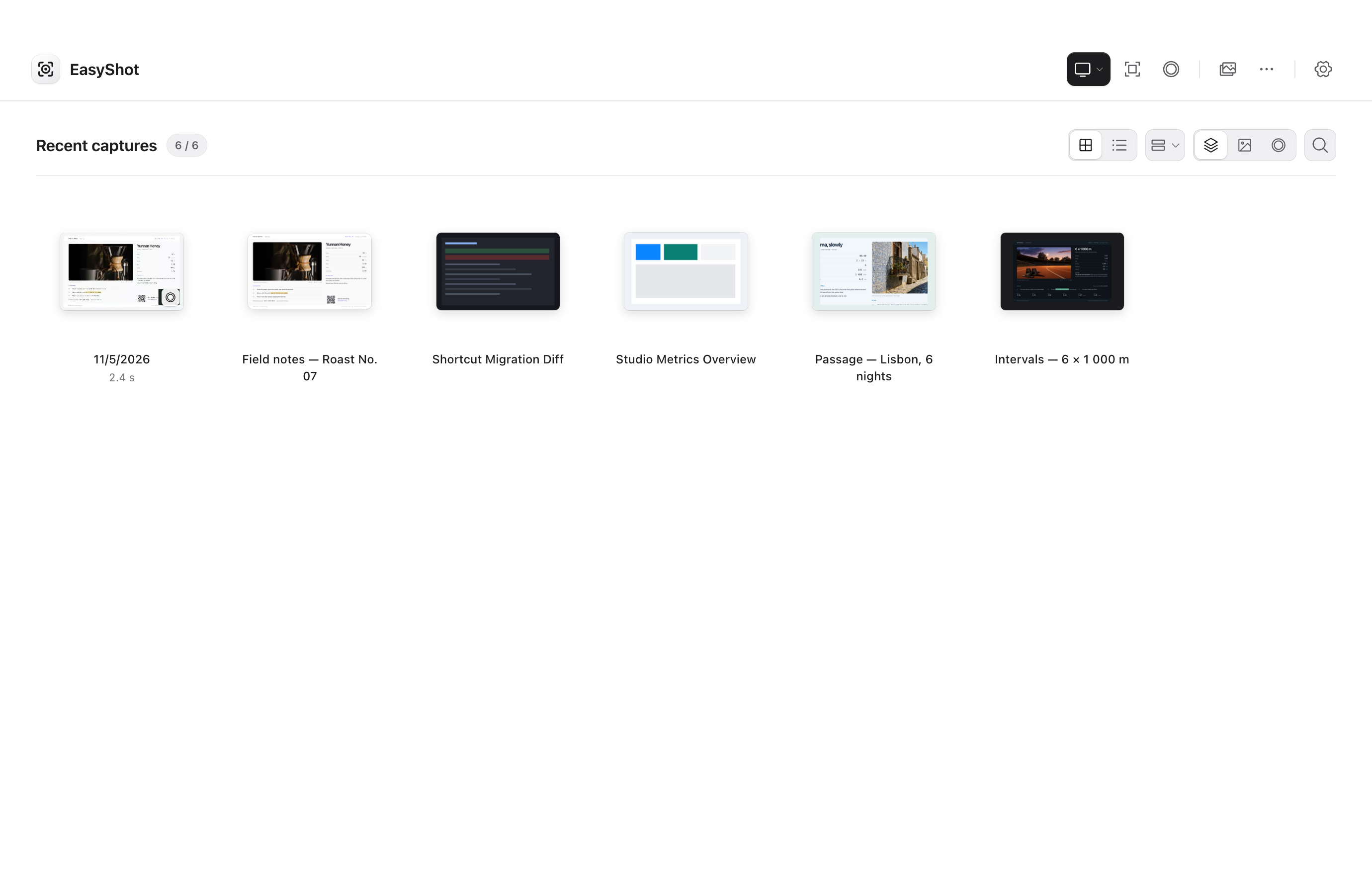
Home is your local media library.
Screenshots and recordings live together in one library, and that library is on your own machine.
- Switch between icon and list views, and filter by type or date.
- Captures, editable .easyshot projects and recording projects are all stored there.
- Deleted originals go to the macOS Trash or the Windows Recycle Bin.
Asked before the download.
Each answer is checked against the development build. Where a detail is not settled yet, the answer says so instead of guessing.
Which computers does EasyShot run on?
Apple silicon Macs on macOS 13 or later, and 64-bit PCs on Windows 10 version 1803 or later. Recording system audio needs macOS 14.2 or later. The two builds carry the same feature set. This first beta is macOS only; the Windows build follows. There is no Linux build to offer.
The operating system stops the app the first time I open it.
Beta builds are not signed for distribution yet, so the first launch gets stopped: on macOS Gatekeeper blocks it (System Settings → Privacy & Security → Open Anyway), and on Windows SmartScreen shows a warning (More info → Run anyway). The full first-launch steps are published with the downloadable beta on the download page.
Do my screenshots or recordings get uploaded?
No. There is no account and no EasyShot cloud, so a capture has nowhere to be sent. Selection, annotation, editing, export and offline text recognition run on your machine. The optional features that do use the network — Edge voiceover, Pixabay search with your own key, full-page capture of a URL you enter — are listed one by one on the privacy page.
Do I need an account, a subscription or a license key?
None of the three. EasyShot is free during beta, and pricing after the beta has not been announced.
Where do the files live, and what happens when I delete a capture?
In the local media library on your machine: screenshots, recordings, editable .easyshot projects and recording projects are files on your own disk. Deleting a screenshot original moves it to the macOS Trash or the Windows Recycle Bin. Recent captures also stay in local history, which you can configure.
Does text recognition work offline?
Yes. Recognition and QR reading run on your machine, through the operating system's own text engine, over the region you select, and the lines land in a window you can copy as plain text. The list of supported languages is not published yet — it goes on the site once it has been checked against a shipped build.
What is the difference between a scrolling capture and a full-page web capture?
A scrolling capture stitches what is really on your screen while the page moves — automatic scrolling, your own scroll, or one frame at a time — and it stays on the machine. A full-page web capture asks the URL you enter for the whole page, a request similar to a browser's. Only the second one uses the network.
When can I download it?
The macOS public beta is available now on the download page. The Windows build is not published yet; it will appear there once it is signed and released. The changelog starts with this release.
EasyShot. At home on your desktop.
The macOS public beta is ready to download. Check the download page for requirements and first-launch steps. Free during beta, with no account required.
Visit the download page